Create your electronic lease with Bloc Solutions
In order to create an electronic lease, you must first have added the information for your building and unit on the Bloc Solutions platform. Then, add a lease to this unit.
Please see our FAQ article for a more complete version of this tutorial.
Here are the steps to create your electronic lease:
- Select your unit in the Real Estate section.
- Select the Leases tab.
- Click on the blue “Create a new lease” button.
At this point you have two choices
- Create a new lease
- Import an existing lease
You must choose the first option.
We also have an online video on the steps involved in creating your electronic lease on Bloc Solutions.
Creating a new lease
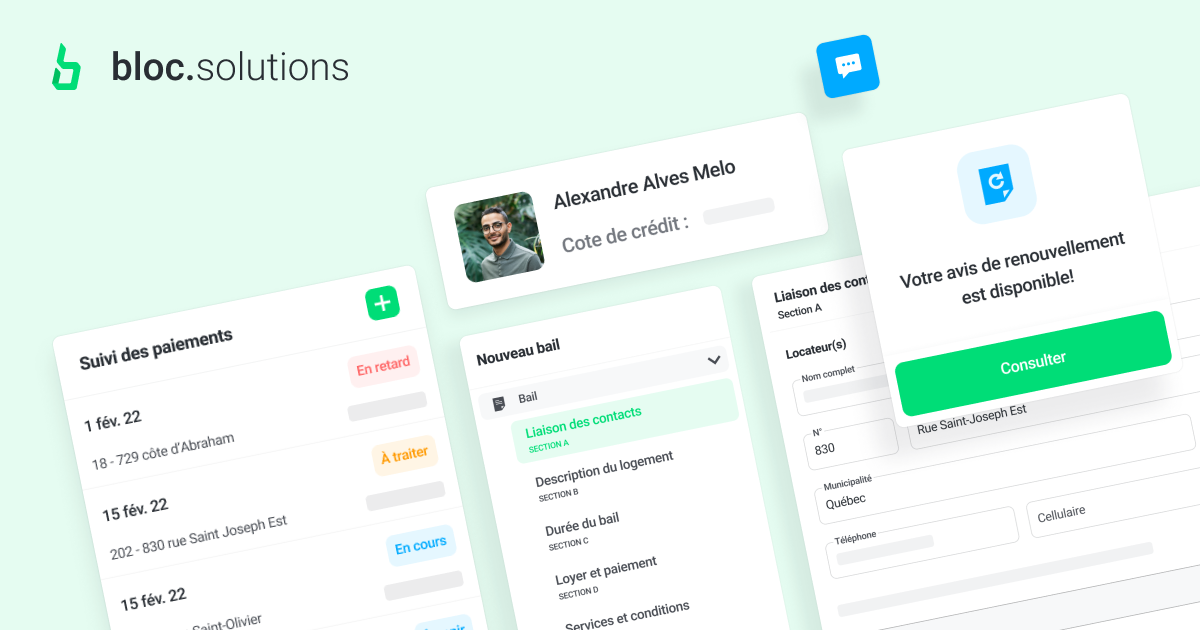
Bloc Solutions now allows you to produce, generate and sign a lease directly on the platform.
To do so, go to the add lease form, then select New electronic lease.
If you want to add a lease that has already been signed outside the platform (e.g. a paper lease), Bloc Solutions allows you to do so by selecting Add Existing Lease.
This way, you can also use the management features available with your previously signed leases.
The steps for creating a lease on the Bloc Solutions platform
Link
Tenants
By linking a contact to the lease, you create the link between your lease and the Contact object that corresponds to your tenant. It is this link that defines the tenant as a tenant and gives them access to the platform.
Important: Without this link, the system cannot understand that it must send an invitation to tenants/endorsers. It is therefore essential to link the contacts at this stage and not by manually entering their information in the lease form in section A.
Attachments
You can then link documents (attachments and others) to the lease you create. You can create your own custom attachments and link them to the lease to have them signed directly on the platform. We also have an article for that.
About the Attachment: Bloc Solutions’ Attachment
For a new electronic lease, your tenants sign the attachment offered by Bloc Solutions at the same time they sign their lease on the platform. This attachment states that the tenants agree to use Bloc Solutions as their official means of communication.
If you are entering an existing lease, your tenants are required to sign the Bloc Solutions User Agreement before they can use the platform. An invitation email with instructions will be sent to them once you have completed the lease entry.
Building bylaws
To link your building bylaws to the lease, you must add them in the Documents section of the application. If the bylaws have not been added yet, you can do the same as with the attachments and add them directly from the form by clicking on the “+” when you click on “Choose a document or documents”.
Difference between Attachments and Bylaws
Attachments are agreements related to the lease that are written and signed on an external document and attached to the lease. Your tenants must sign all attachments individually.
Bylaws are a document that you give to your tenants when they sign the lease.
Sections
The different sections of the form presented here are exactly the same as the ones you find in the paper lease from the Tribunal administratif du logement. Once you have completed the lease and clicked on the ‘‘generate’’ button, you will be able to download a PDF version, identical to the traditional lease from the Tribunal administratif du logement.
Issuing a new electronic lease
In the event that you complete a new electronic lease, the last step is to issue (generate) it.
When an electronic lease is signed and/or active, a new invoice will be issued and you will be charged $1/unit/month. It is therefore important to add your payment information under the business settings tab as soon as you can.
Once the lease is issued, you have two options:
- Have the tenant sign it on the spot, on your phone or tablet.
- Fill out the lease, sign it and generate access for your tenant so they can then log in to the platform on their side and sign it.
How to sign a lease as a co-owner
There is a procedure for signing a lease when the building has more than one owner.
Similar to property management companies, it is not necessary to have the lease signed by all of the owners of the building being rented. You can put only one name on the lease if you wish, or put both names on the lease and sign it yourself. You will then be representing your business partner in the lease.
To do so:
- Access the lease creation of the unit where you wish to create an electronic lease.
- Then start the electronic lease creation and go to section A.
- You can then add the information of your business partner, the co-owner of the rental property.
- Also enter your first and last name on the line “if applicable represented by”.
- You can now complete your lease and it will be ready for signature by the parties mentioned.
It is possible to view the full or short version of the video.
Do you have any other questions? Continue to consult this FAQ or ask us your questions by clicking on the discussion bubble at the bottom right.